Four steps from an empty account to a planned day. Every step comes with a picture of what you actually see on screen. The first day gets planned in about fifteen minutes.
Before you start
A Movira account. If you do not have one yet, write to us — we will set it up and send you a login link.
A list of vehicles with their registration numbers. Jobs can be entered without vehicles, but not planned.
Driver names. A driver is tied to a vehicle in the plan; work schedules are optional and can be added later.
A couple of real jobs to try it on. Invented addresses give the map and the route calculation nothing to work with.
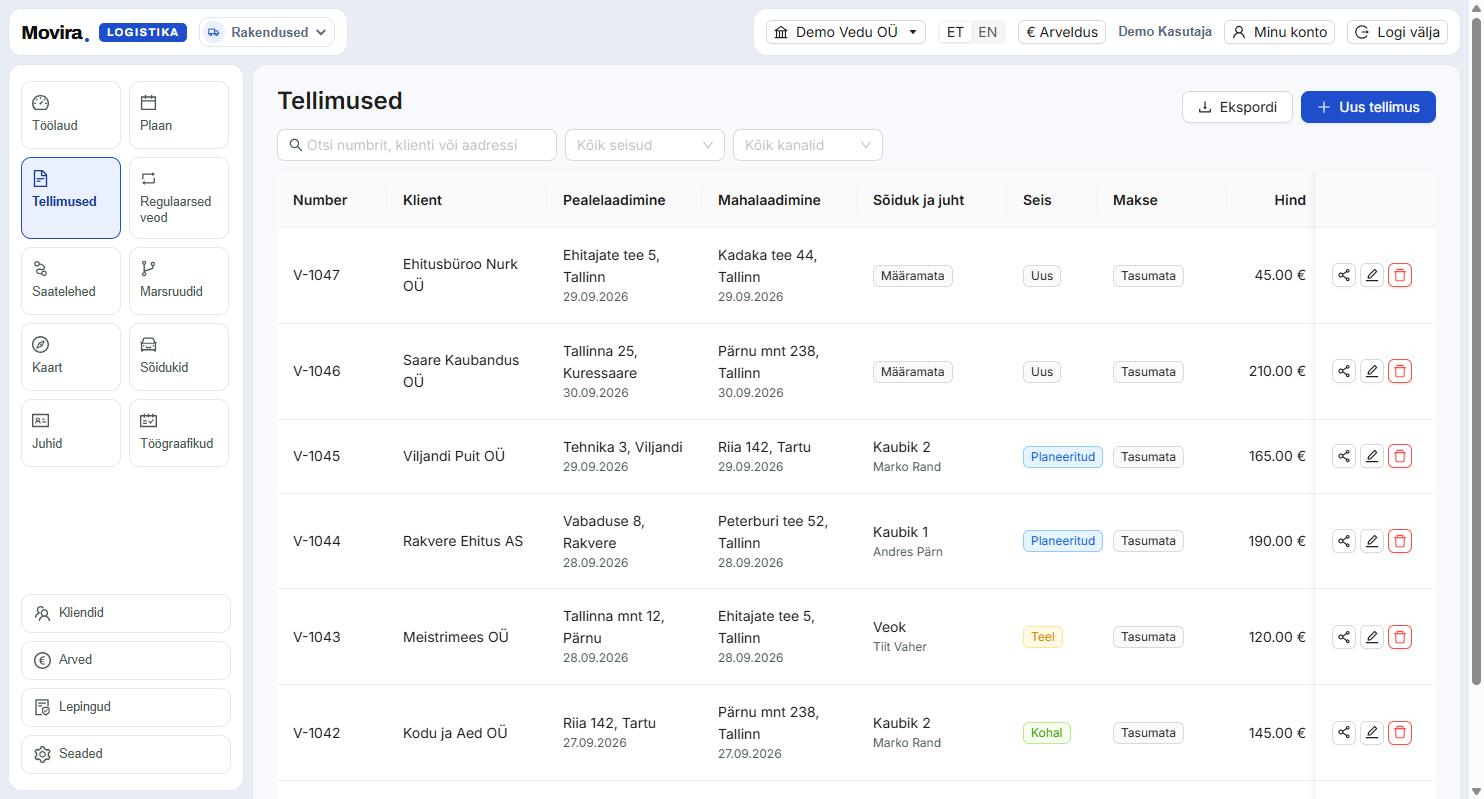
Press "New order". A job needs two ends — where it is collected and where it goes — and a date. Customer, price and customer reference come along when you have them. In the list every job is one row: number, customer, both addresses with their dates, vehicle and driver, status and price. You can filter by status and channel, and the whole list comes out as Excel.
The status moves forward on its own as the job is planned and the driver takes it on — nothing has to be flipped by hand.
Repeating jobs belong in "Recurring": describe it once and the system creates the jobs in advance.
The customer can fill the order in themselves — share a public form and the answer lands straight in the list.
Every job carries a share link, so the customer can follow its status without creating an account.
Step 2
Put jobs onto vehicles
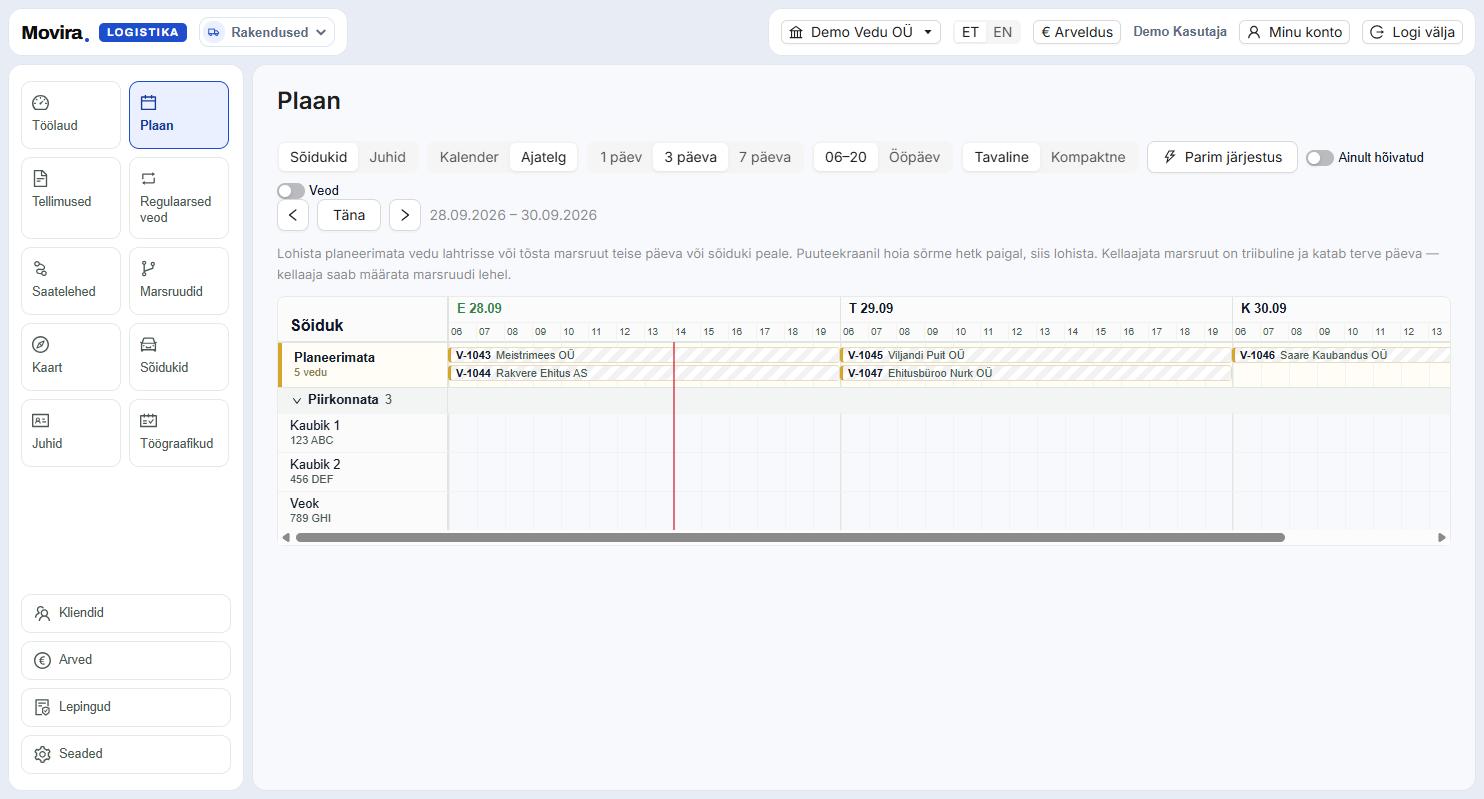
The plan is where the day comes together. The "Unplanned" bar at the top holds jobs without a vehicle; drag one onto the right vehicle row and time. Vehicles are grouped by region, so nearby trucks sit side by side. The timeline shows the day to the hour — two overlapping jobs are visible immediately, not when the driver calls. If you want more days at once, switch on the calendar view or the three- and seven-day views.
On a touchscreen, hold your finger still for a moment before dragging.
"Best order" lets the system sequence the stops — you can correct the result by hand afterwards.
"Busy only" hides empty vehicles when there are many of them.
One vehicle's jobs for one day are collected on a waybill, which comes out as PDF or Excel.
Step 3
Check the day on the map
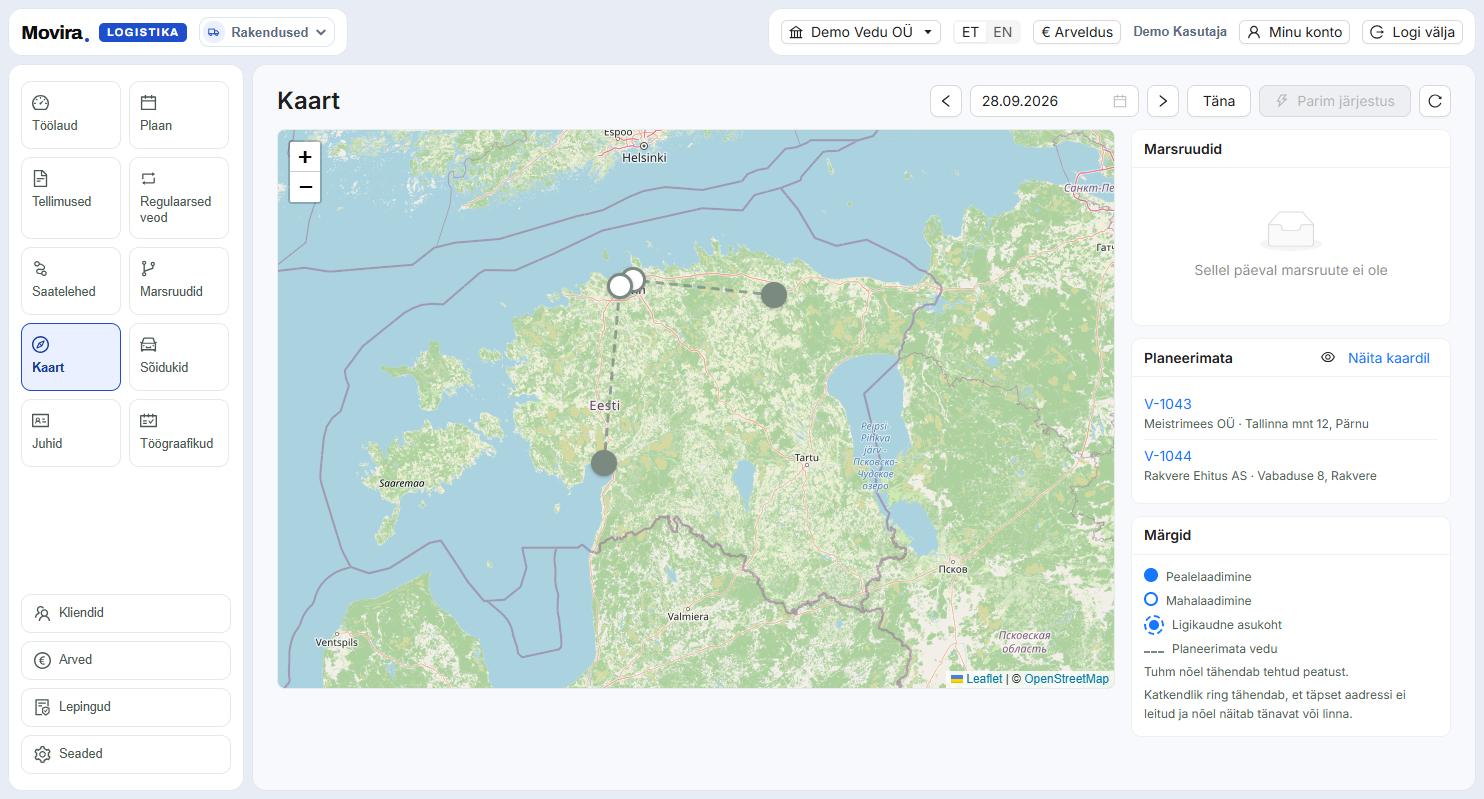
The map shows the same day differently: stops as a line with sequence numbers. It reveals what a table cannot — whether a truck passes the same place twice, and whether an unplanned job happens to sit on somebody's route. Unplanned jobs are listed on the right and can be added to the map. Addresses are looked up in batches; if one is still being resolved the map says so, and after a reload it is remembered.
A dashed circle means the exact address was not found and the pin shows the street or town.
A dimmed pin is a stop that has already been made.
The date changes with the arrows — the map and the plan always show the same day.
Step 4
Start the morning on the dashboard
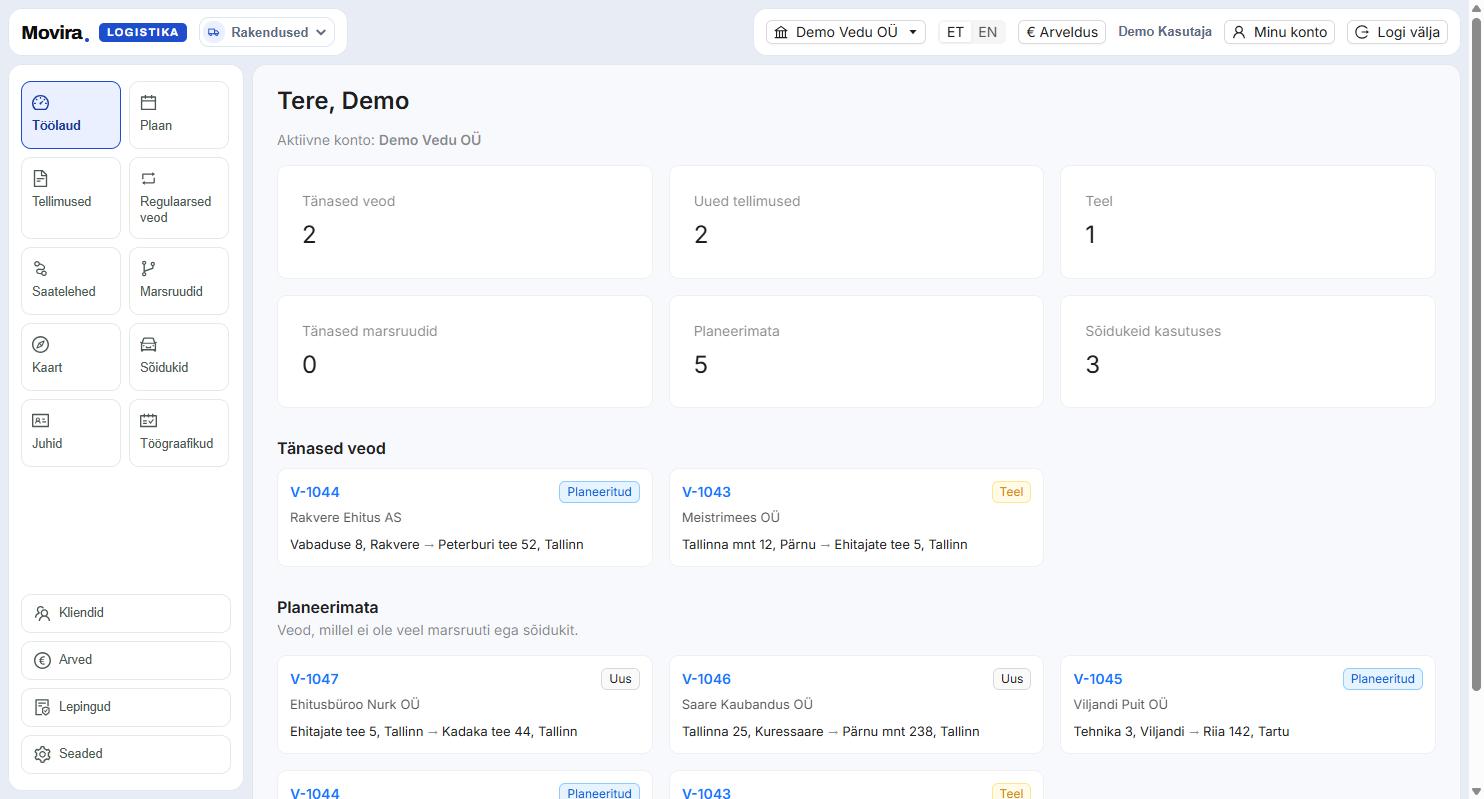
The dashboard answers one question: is the day covered. Six numbers at the top: today's jobs, new orders, in transit, today's routes, unplanned jobs and vehicles in use. Below them are two lists — today's jobs, and the ones that still have no route and no vehicle. A number alone says "unplanned 5"; the list says WHICH ones are unplanned, and that is the next thing to do.
The numbers belong to the active account. You switch accounts from the name bar at the top.
Every card links straight through to where that work is done.
When "Unplanned" is zero, the day is covered — that is the one number that should reach zero by morning.
Tips
What people usually trip over
A job will not drag onto the plan
Check the date: the plan shows one day at a time (or three, or seven), and a job on another day is simply not on that screen. Cancelled and delivered jobs are not offered for planning.
An address does not reach the map
Addresses are looked up from public search services in batches. Reload the map after a moment — found points are remembered. If it still fails, the address usually has a typo or is missing the town.
A driver cannot see their job
A driver is tied to a vehicle, not to a job. Check on the plan whether the job is on the row of the truck the driver is in.
A customer asks where their goods are
Every job has a share link. Send it to the customer — they can see the status themselves and the call never happens.
The same job has to be entered every week
That is what "Recurring" is for. Describe the frequency once and the system creates the jobs in advance.
I want to try things without messing up a real day
Create a second account and switch to it from the top bar. Accounts cannot see each other's data.
The screenshots come from the working app on a demo account — no customer jobs appear here. They are in Estonian on the English page as well; the app itself speaks both languages and you switch at the top right.
Try it yourself
The fastest way to understand it is to type in one real day and plan it. If something stays unclear, write to us — a person answers, not a form.